A browser leak test answers one practical question: when a website looks at this browser session, does it see what you expect it to see?
That matters because a proxy or VPN can change your visible IP address, but your browser can still expose other clues. WebRTC may reveal network candidates. DNS or resolver behavior may not match the route you thought you were using. Timezone, language, location permission, user agent, screen size, canvas behavior, and old cookies can all create mismatches.
NetPeek is the practical place to start. Use it as an all-in-one check before you trust a proxy, VPN, residential IP, mobile proxy, or isolated browser session. The goal is not to “be invisible.” The goal is to find visible leaks and mismatches before they break your workflow.
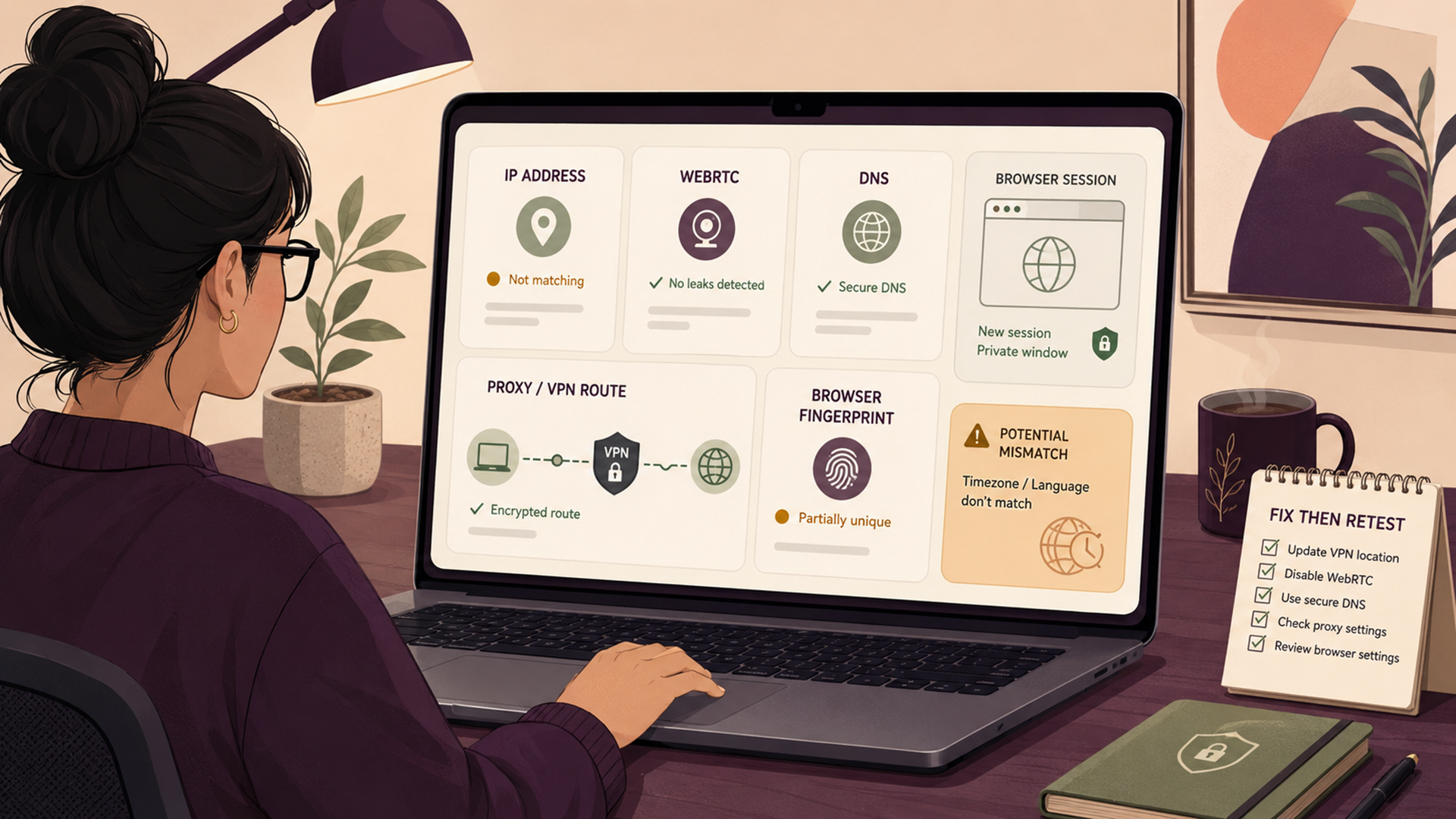
Quick answer: what should a browser leak test check?
A serious browser leak test should check more than your public IP. Your IP address is only the first layer. A useful test should also look for WebRTC candidates, DNS or resolver mismatch clues, proxy/VPN consistency, timezone and language alignment, browser fingerprint signals, and session-state problems.
| Leak area | What you are checking | Why it matters | Typical fix |
|---|---|---|---|
| Public IP | The IP address websites see when the browser loads a page. | If this shows your home, office, or wrong proxy location, the setup is not routing as expected. | Reconnect VPN/proxy, check browser routing, or change the selected exit location. |
| WebRTC | Whether WebRTC exposes host, server-reflexive, or relay candidates that do not match your intended route. | WebRTC exists for peer-to-peer communication and can reveal more network information than a simple IP checker. | Use browser WebRTC controls, relay-only policies where available, or a browser/profile setup that prevents unwanted exposure. |
| DNS / resolver | Whether DNS behavior points to an unexpected ISP, resolver, region, or local network path. | A VPN/proxy session can look inconsistent if web traffic exits one route but DNS resolution appears somewhere else. | Use VPN-provided DNS, Secure DNS/DoH carefully, or align DNS with the proxy/VPN workflow. |
| Timezone and language | Whether browser timezone, language, and locale align with the intended region. | A U.S. proxy with a Tokyo timezone or mismatched language can be a red flag in location-sensitive testing. | Use a dedicated browser session and align locale settings only where appropriate and allowed. |
| Fingerprint clues | User agent, screen, platform, canvas/WebGL, fonts, hardware, and other browser-exposed signals. | Fingerprinting can track or score sessions even when cookies are cleared or IPs change. | Use fewer unusual extensions, avoid random manual spoofing, and test with a consistent clean browser profile. |
| Cookies and storage | Whether old login state, local storage, or cross-site identifiers are still present. | A clean proxy route is less useful if the same browser still carries old account state. | Use separate browser profiles or isolated sessions with tools like Instanciar. |
Use NetPeek before logging into sensitive dashboards, before starting a proxy-based QA run, before testing a regional page, and after changing a VPN, proxy, browser profile, DNS resolver, or WebRTC setting.
What is a browser leak?
A browser leak is any visible signal that exposes more than you expected from the current session. It does not always mean a hacker is attacking you. In proxy and VPN workflows, a “leak” often means a mismatch: the IP says one thing, but WebRTC, DNS, timezone, cookies, or fingerprint clues say something else.
For example, a normal IP checker may say your browser appears to be in Germany. That looks fine until a deeper browser leak test shows that WebRTC exposes a different candidate, DNS behavior points to your local ISP, the browser timezone is still set to New York, and the profile has old cookies from a previous account.
That is why a real IP leak test should be paired with a WebRTC leak test, DNS leak test, and browser fingerprint test. The result is not a single pass/fail number. It is a consistency check.
What NetPeek checks and how to think about the results
NetPeek should be treated as a visibility dashboard. It helps you see what a website can infer from the current browser session, then compare that against your intended setup.
A browser-based tool can directly see browser-exposed information. It can also use network requests, test endpoints, and WebRTC behavior to reveal practical mismatch clues. That is enough for most users: VPN users checking whether their real IP is exposed, proxy users testing a session, remote workers validating a connection, QA testers checking a region, and researchers separating browser contexts.
| NetPeek area | What a clean result usually looks like | What a suspicious result looks like | What to do next |
|---|---|---|---|
| Visible IP | The IP, ASN/provider, and approximate region match the proxy or VPN you intentionally selected. | The IP is your real ISP, office network, hosting provider you did not intend, or a different country. | Reconnect, change exit node, check app routing, or confirm whether only the browser is proxied. |
| WebRTC | No unexpected host or server-reflexive candidates expose a local/private route or non-proxy path. | WebRTC candidates show private/local candidates or another public IP that does not match the session. | Review WebRTC settings, browser flags, extensions, VPN leak protection, or relay-only behavior. |
| DNS and resolver clues | DNS behavior is aligned with the VPN/proxy route or expected secure resolver. | DNS seems tied to your ISP, local network, wrong country, or a resolver unrelated to the route. | Use VPN DNS, align Secure DNS, disable split DNS if inappropriate, or test in a clean browser instance. |
| Timezone and locale | Timezone, language, and region make sense for the session goal. | IP location and browser locale point to different regions without a good reason. | Use a dedicated profile/session for region testing instead of mixing daily browsing settings. |
| Fingerprint clues | The browser looks consistent and boring enough for the workflow. | Odd extensions, unusual spoofing, headless indicators, mismatched user agent, or noisy settings stand out. | Reduce unnecessary extensions, avoid random spoofing, use a normal browser profile, and retest. |
| Session isolation | Cookies and storage match only the workflow you are currently testing. | Old accounts, old domains, or cross-client history are still present. | Use separate Chrome profiles, Incognito for quick checks, or Instanciar for repeatable separated sessions. |
Important: NetPeek can help reveal visible leaks and mismatches. It does not guarantee anonymity, security, anti-tracking, anti-detection, or platform compliance. Use it as a diagnostic tool, not as proof that a session is invisible.
How to run a browser leak test with NetPeek
The best way to use NetPeek is to test in stages. Do not only test after the setup is finished. Test before, during, and after changes so you know which setting caused which result.
- Start with your normal connection. Open NetPeek without a proxy or VPN and record your baseline IP, timezone, language, WebRTC behavior, and fingerprint clues.
- Turn on the VPN or proxy. Connect to the intended country, city, ISP, or mobile/residential route.
- Reload NetPeek in the same browser. Check whether the visible IP changed to the intended route.
- Check WebRTC results. Look for unexpected public or local candidates that do not match the proxy/VPN path.
- Check DNS or resolver clues. If the DNS path points to your real ISP or wrong region, fix DNS before continuing.
- Check browser signals. Timezone, language, platform, user agent, screen, and extension behavior should not contradict the session goal.
- Test in a clean session. Repeat inside a separate browser profile, Incognito window, or Instanciar instance if cookies or old storage may affect the result.
- Retest after login or app launch. Some leaks appear only after an extension, app, or login workflow starts.
If the results change between tests, do not ignore it. A stable, boring result is better than a setup that changes every time you refresh.
How to interpret browser leak test results
The biggest mistake is treating one green-looking IP result as the whole test. Browser leak testing is about alignment.
| Result pattern | Likely meaning | Risk level | Next step |
|---|---|---|---|
| IP, DNS, WebRTC, timezone, and language all match the intended region. | The setup is internally consistent. | Lower, but not zero. | Continue, but keep compliance and platform rules in mind. |
| IP changed, but DNS still points to your ISP. | Possible DNS leak, split tunnel issue, or browser/OS resolver mismatch. | Medium to high for privacy-sensitive workflows. | Use VPN DNS, adjust Secure DNS settings, or test a different client/profile. |
| IP changed, but WebRTC shows another public IP. | WebRTC may be exposing a route outside the proxy/VPN path. | High for VPN/proxy users. | Review WebRTC leak protection and retest before using the session. |
| IP is residential, but browser looks like an automated or mismatched profile. | The network route changed, but the browser identity did not align. | Medium for QA; higher for platform-sensitive sessions. | Use clean browser sessions and avoid unusual spoofing or extension stacks. |
| Incognito fixes the issue. | Old cookies, storage, extensions, or profile state may be the problem. | Depends on the workflow. | Use a separate profile or Instanciar instance rather than your daily browser. |
| Only a specific browser leaks. | Browser-specific WebRTC, DNS, extension, or Secure DNS settings may be responsible. | Medium. | Compare Chrome, Firefox, Brave, Edge, or a clean portable browser setup. |
A mismatch does not always mean “danger.” It means “investigate before trusting the session.” For QA testers, a mismatch can invalidate a test. For remote workers, it can create account-friction. For privacy-conscious users, it can expose more than expected.
WebRTC leaks: why they matter
WebRTC is designed for browser-based real-time communication. MDN describes WebRTC as a technology that lets web applications exchange audio, video, and arbitrary data between browsers, often peer-to-peer and without extra plug-ins. That capability is useful for video calls and data channels, but it also means browsers gather network candidates to establish connections.
The privacy issue is not imaginary. MDN’s RTCIceCandidate.address documentation says candidate addresses can expose information about the source device, including location and network topology, and can also be used for fingerprinting. Mozilla’s own Firefox help page warns that WebRTC can expose a local IP address to websites even when a user is behind a VPN or NAT router.
A WebRTC leak test should answer three questions:
| Question | Good sign | Bad sign |
|---|---|---|
| Are host candidates exposed? | No unexpected local or private network details are exposed to the page. | Local/private addresses or unexpected host candidates appear. |
| Does WebRTC show a public IP different from the proxy/VPN IP? | WebRTC candidates are absent, relay-only, or aligned with the intended route. | A different public IP appears, especially one tied to your ISP or real network. |
| Is the browser using relay candidates only where privacy matters? | The browser or app uses relay-only behavior when appropriate. | Direct candidates expose routes that the simple IP test did not show. |
Fixing WebRTC leaks depends on your browser and workflow. Some VPNs include WebRTC leak protection. Some privacy browsers restrict exposed candidates. Some enterprise or testing setups require WebRTC to work normally. Do not disable WebRTC blindly if you need video calls, browser-based calling, or real-time collaboration tools.
DNS leaks and resolver mismatches
DNS is the lookup system that turns domain names into network destinations. A DNS leak usually means DNS queries are going somewhere other than the route you expected. In a VPN workflow, that can mean your web traffic exits the VPN while DNS still goes to your ISP. In a proxy workflow, DNS may be resolved by the browser, app, proxy, operating system, or upstream resolver depending on the setup.
DNS over HTTPS, defined in RFC 8484, maps DNS queries and responses into HTTPS exchanges, using HTTPS/TLS for integrity and confidentiality between the DNS client and DoH resolver. That can protect DNS traffic on the wire, but it does not automatically make your whole browsing session private. It shifts trust to the resolver and still needs to match the session goal.
| DNS result | What it suggests | Practical response |
|---|---|---|
| Resolver matches your VPN provider or expected secure resolver. | The DNS path may be aligned with the VPN/proxy plan. | Continue checking WebRTC and fingerprint clues. |
| Resolver points to your home ISP. | Potential DNS leak or local resolver fallback. | Use VPN-provided DNS, adjust browser Secure DNS, or disable split tunneling if inappropriate. |
| Resolver country differs from proxy country. | Possible mismatch between browser DNS, OS DNS, and proxy route. | Retest with a clean profile and confirm whether DNS is resolved locally or by the proxy. |
| DNS changes every refresh. | The resolver setup may be unstable or using rotating infrastructure. | Use a stable resolver for repeatable QA and research workflows. |
| DNS looks clean but fingerprint is mismatched. | DNS is not the problem; browser identity may be. | Move to browser-session isolation and fingerprint testing. |
For a deeper buying and setup path, read Jivaro’s Proxy vs VPN guide. VPNs are usually better for device-wide routing. Proxies are usually better when you need controlled routing for one browser, app, profile, or session.
Browser fingerprint mismatches: the leak people miss
Browser fingerprinting does not need your real IP to create risk. It combines browser and device attributes into a pattern. Recent coverage from WIRED describes fingerprinting as the aggregation of details like screen resolution, fonts, language, browser version, hardware, timezone, and related signals that can identify or track users even across different websites and sessions.
For proxy and VPN users, the important part is not only uniqueness. It is consistency. If the network says “residential IP in France,” but the browser says “U.S. timezone, English-only language, unusual GPU, odd user agent, old cookies, and three privacy extensions fighting each other,” the session may look inconsistent.
| Fingerprint signal | Why it matters | Common mistake | Better habit |
|---|---|---|---|
| User agent | Identifies browser, version, OS, and sometimes device class. | Randomly spoofing a mobile user agent on a desktop browser. | Use a normal, current browser identity that matches the real environment. |
| Timezone | Can contradict proxy/VPN region. | Testing a UK proxy while browser timezone remains Los Angeles. | Align timezone only when it is part of legitimate regional QA. |
| Language | Language headers can contradict a supposed region. | Over-customizing language settings for every test. | Keep language settings consistent and plausible for the workflow. |
| Canvas/WebGL | Graphics rendering can help fingerprint a device. | Installing multiple fingerprint extensions that create unusual output. | Use one clean privacy strategy, not a stack of conflicting tools. |
| Cookies/storage | Old state can identify the session regardless of IP. | Changing proxies inside the same daily browser profile. | Use isolated profiles or Instanciar sessions. |
| Extensions | Extensions can modify network, headers, scripts, canvas, or WebRTC behavior. | Assuming more extensions always means more privacy. | Keep the profile minimal and retest after each extension change. |
For a deeper explanation of why IP changes do not solve browser tracking by themselves, read Jivaro’s browser fingerprinting guide. If you specifically use proxies, the browser fingerprinting test guide is the next step after a basic NetPeek check.
Browser leak test setup checklist
Use this checklist after you understand the results. Do not start by changing random settings. First identify the mismatch, then fix the layer that caused it.
| Step | What to do | Why it helps |
|---|---|---|
| 1. Confirm the intended route | Know whether you are using a VPN, HTTP proxy, SOCKS5 proxy, residential IP, mobile proxy, or ISP proxy. | You cannot diagnose a leak if you do not know what the result should be. |
| 2. Test the public IP | Open NetPeek and confirm visible IP, ASN/provider, and location. | This catches basic routing failures immediately. |
| 3. Check WebRTC | Look for unexpected WebRTC candidates or public IPs that differ from the intended route. | WebRTC can expose information not shown by a simple IP checker. |
| 4. Check DNS behavior | Look for resolver, ISP, or location mismatch clues. | DNS can reveal a different route than web traffic. |
| 5. Compare timezone and language | Check whether timezone and language make sense for the test goal. | Regional QA and proxy workflows often fail because browser signals conflict. |
| 6. Use clean session isolation | Use a separate Chrome profile, Incognito for quick checks, or Instanciar for repeatable workflows. | Separate sessions reduce cookie and local-storage carryover. |
| 7. Retest after each change | Change one thing, reload NetPeek, and compare. | Testing after every change identifies the real cause instead of guessing. |
If you need proxies, start with Jivaro’s best affordable proxy providers guide. For simple all-around residential and ISP options, compare IPRoyal and Proxy-Seller, but always match the proxy type to the workflow before buying.
Proxy, VPN, and isolated browser workflows
Proxy and VPN users should not test every setup the same way. A VPN usually routes more of the device. A browser proxy may route only one browser or one app. A residential proxy may change the visible IP but not the rest of your browser profile. A mobile proxy may match mobile network behavior but still look wrong if you use it from a desktop profile with mismatched signals.
| Workflow | What to test first | What usually goes wrong | Best tool pairing |
|---|---|---|---|
| VPN privacy check | Public IP, DNS resolver, WebRTC, Incognito behavior. | DNS falls back to ISP, WebRTC exposes a route, split tunneling sends some traffic outside VPN. | NetPeek plus VPN client leak protection settings. |
| Residential proxy browser session | IP, ASN, country, DNS behavior, cookies, timezone, language. | The IP changes but the browser profile still carries old identity signals. | NetPeek plus Instanciar. |
| Mobile proxy test | IP, carrier/ASN clues, device/browser consistency, WebRTC. | Mobile route is paired with an obviously desktop-only browser fingerprint. | NetPeek plus a dedicated mobile-testing profile or device. |
| QA regional preview | Visible region, DNS/resolver region, timezone, language, cached content. | Old cookies or cache show the wrong regional version. | NetPeek plus separate clean QA sessions. |
| Research compartmentalization | IP, cookies, storage, browser fingerprint stability. | One research topic contaminates another through cookies or search personalization. | NetPeek plus separate profiles or Instanciar groups. |
| Remote-work dashboard | Employer/platform rules first, then IP/DNS/WebRTC if the setup is allowed. | Using proxies or VPNs where the platform prohibits them. | NetPeek only after confirming policy compliance. |
Use proxy and VPN tools only where they are allowed. A clean leak test does not make a prohibited workflow acceptable. If a platform bans proxies, VPNs, multi-accounting, automation, or location masking, follow the rule or choose another workflow.
What NetPeek and other leak tests cannot prove
A browser leak test is a snapshot. It shows what the current page can see at test time. It cannot prove that every other website, app, extension, platform, or network observer sees the same thing.
Google’s Incognito documentation makes a similar point about private browsing: Incognito limits what Chrome saves to your device, but it does not make you invisible to websites, network administrators, employers, schools, or internet service providers. The same principle applies to leak testing. Passing a test does not mean you are untrackable.
| What NetPeek can help with | What it cannot guarantee |
|---|---|
| Visible IP, WebRTC candidates, browser signals, and mismatch clues. | Total anonymity. |
| Proxy/VPN consistency checks before using a session. | That a platform allows proxy or VPN use. |
| Identifying obvious DNS, timezone, language, and fingerprint mismatches. | That all DNS behavior from every app on the device is leak-free. |
| Comparing normal, Incognito, VPN, proxy, and isolated-browser sessions. | That extensions, apps, malware, or operating-system traffic are not leaking elsewhere. |
| Finding visible problems quickly. | That advanced tracking, server-side scoring, or fingerprinting will not occur. |
The safest habit is to test with NetPeek, fix obvious mismatches, then test the actual workflow with a low-risk page before logging into anything important.
Common browser leak test mistakes
Most failed proxy or VPN sessions come from simple mistakes. The test is not complicated; the workflow around it is.
| Mistake | Why it matters | Better approach |
|---|---|---|
| Only checking public IP | The IP can look correct while WebRTC, DNS, or fingerprint clues still mismatch. | Run a full browser leak test with IP, WebRTC, DNS, and browser signals. |
| Testing in a dirty daily browser | Old cookies, extensions, and storage can distort the result. | Compare normal, Incognito, and a clean separate profile. |
| Changing five settings at once | You will not know which change fixed or caused the leak. | Change one setting, reload NetPeek, and log the result. |
| Assuming Incognito means anonymous | Incognito limits local saving but does not make you invisible to sites or networks. | Use Incognito as a quick clean session, not a privacy guarantee. |
| Using random fingerprint spoofing | Randomized signals can look more suspicious than a normal consistent browser. | Prefer consistency, minimal extensions, and clean session isolation. |
| Ignoring platform rules | A technically clean session may still violate terms. | Confirm policy compliance before using proxies or VPNs for work accounts. |
FAQ
Sources and useful reading
- NetPeek browser leak test on Jivaro
- MDN: WebRTC API
- MDN: RTCIceCandidate address property
- Mozilla Support: Firefox automatic connections and WebRTC note
- RFC 8484: DNS Queries over HTTPS
- Google Chrome Help: Browse in Incognito mode
- WIRED: What is browser fingerprinting?
- Jivaro: Proxy vs VPN
- Jivaro: Browser Fingerprinting Explained
- Jivaro: Browser Fingerprinting Test
- Jivaro: Best Affordable Proxy Providers
A clean browser leak test is not about chasing perfect invisibility. It is about making sure the visible parts of your session agree with the work you are doing. Use NetPeek to check the basics, then fix the specific mismatch before trusting the session.