Browser Fingerprinting Test: Find Proxy Leaks Fast
A proxy can show a new IP address while your browser quietly gives away everything else: your timezone, language, device type, fonts, WebRTC behavior, screen size, DNS path, TLS signature, and even clues that your browser profile was artificially modified. That is why a browser fingerprinting test matters. It tells you whether your setup looks like one coherent browser session—or like a proxy layered on top of a leaky identity.
This matters for privacy-focused beginners and anyone using proxies for automation. A marketer checking regional pricing, a QA tester verifying localized pages, or a researcher collecting public web data may all use proxies for legitimate reasons. But if the browser still reveals a home timezone, local DNS resolver, original WebRTC address, or mismatched language settings, the proxy may not provide the separation the user expects.
The goal is not to chase impossible “perfect anonymity.” The goal is practical leak detection. This guide explains what browser fingerprinting is, how to test whether your proxy is still leaking identity signals, which tools to use, what suspicious results look like, and how to fix the most common problems without turning your browsing setup into a broken, unusable mess.
What a Browser Fingerprinting Test Actually Checks
A browser fingerprint is a profile created from many small technical signals your browser and device expose when you visit a website. Each signal may look harmless on its own. Combined, they can become distinctive enough to recognize the same browser across different sessions, especially when the browser has unusual settings or inconsistent privacy tools. The Electronic Frontier Foundation’s Cover Your Tracks project describes this as showing how trackers see your browser and how uniquely identifying its characteristics may be [1].
A proper browser fingerprinting test does not only ask, “What IP address do I show?” It examines whether the entire session makes sense. If your proxy IP says Germany but your browser reports a U.S. timezone, an English-only language header, a DNS resolver in another country, and WebRTC candidates tied to your real network, that setup looks suspicious. A well-configured setup should be consistent across layers.
The most important fingerprinting categories usually include IP address, DNS resolver, WebRTC behavior, timezone, language, user agent, browser version, screen resolution, installed fonts, canvas rendering, WebGL/GPU details, audio fingerprint, cookies, local storage, TLS fingerprint, HTTP headers, and sometimes behavioral signals. CreepJS describes itself as a privacy-first fingerprinting platform and analyzes dozens of browser characteristics to reveal fingerprinting patterns [2]. BrowserLeaks also provides separate tests for IP, WebRTC, DNS, canvas, WebGL, fonts, TLS, HTTP/2, and related browser leak surfaces [3].
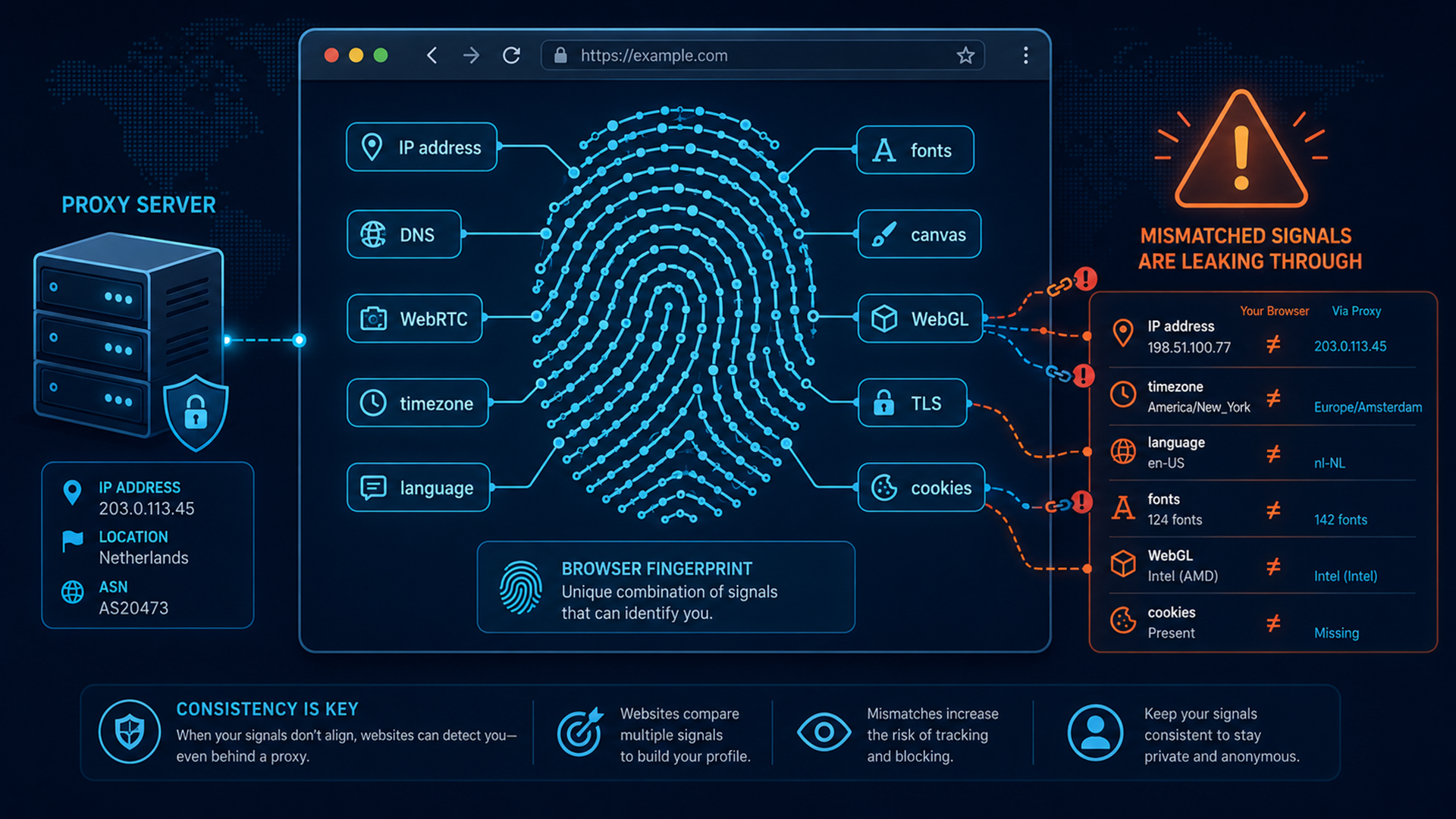
The most useful way to think about fingerprint testing is coherence. A proxy changes the road your traffic travels. A fingerprinting test checks the vehicle, license plate, driver behavior, dashboard settings, and paperwork. If those details conflict, the proxy may still work technically, but the browser session may not look natural.
Why a Proxy Alone Does Not Hide Your Identity
A proxy server routes web traffic through another IP address. That can be useful for privacy separation, localized testing, and automation workflows, but it does not automatically rewrite every browser signal. If your browser sends a timezone, language, WebRTC result, or TLS fingerprint that contradicts the proxy location, the site may infer that something is off. That does not always mean you are “identified” by name, but it can link sessions or flag the setup as inconsistent.
This is where beginners often make a costly assumption. They buy a proxy, check an IP lookup page, see the proxy location, and assume the setup is clean. That is only the first check. A real leak test asks whether the IP, DNS, WebRTC, browser fingerprint, and stored session data all line up. If they do not, websites with anti-fraud, analytics, or bot-detection systems may treat the session differently.
For example, imagine a user testing a French e-commerce site with a Paris residential proxy. The IP address looks French, but the browser language is set to en-US, the timezone is America/Chicago, the screen size is an unusual automation default, and WebRTC reveals an address path unrelated to the proxy. None of those signals alone proves abuse. Together, they make the session look less like a normal French user and more like a remote-controlled browser.
The same logic applies to automation. If a script rotates proxies but reuses the same browser fingerprint, a site may connect the supposedly separate sessions. If the browser fingerprint changes too aggressively on every request, that can also look unnatural. The best practice is not random chaos. It is stable, realistic, and internally consistent browser identities.
For proxy fundamentals, provider selection, and cost tradeoffs, see Jivaro’s guide to affordable proxy providers. For situations where a VPN is more appropriate than a proxy, Jivaro’s article on VPN services for online privacy explains the privacy and traffic-routing differences.
How to Run a Browser Fingerprinting Test Step by Step
Start with a clean baseline. Open your browser with no proxy, no VPN, and no special extensions. Visit a reputable testing tool such as Cover Your Tracks, BrowserLeaks, CreepJS, IPhey, or Pixelscan, and record the results. The goal is not to publish or share this information. It is to understand what your normal browser exposes before changing anything.
Next, enable your proxy and repeat the same tests in a fresh browser profile. Do not reuse a profile full of old cookies, saved logins, cached scripts, or previous local storage. Fingerprinting and tracking often work together; even if your proxy is clean, old cookies can tie the new session to past browsing. A separate profile also makes it easier to test fixes without breaking your everyday browser.
A strong testing sequence looks like this:
- Check the visible IP address and geolocation.
- Run a DNS leak test.
- Run a WebRTC leak test.
- Check timezone and language consistency.
- Review user agent, browser version, and operating system signals.
- Inspect canvas, WebGL, fonts, and audio fingerprint results.
- Review TLS, HTTP/2, and request-header fingerprints where available.
- Clear cookies/local storage, restart the browser, and retest.
- Repeat from another testing site to avoid relying on one tool.
After each test, ask one question: “Would this make sense for a real user in the proxy location?” If your proxy shows Tokyo but the browser timezone is Berlin, the answer is no. If the IP is residential but the TLS signature looks like a headless automation library, that may also be a problem. If the DNS resolver belongs to your local ISP rather than the proxy/VPN path, that is a leak worth fixing.
BrowserLeaks’ WebRTC test checks whether the WebRTC API can reveal local or public IP information through connection candidates [4]. DNS leak tests check which DNS servers resolve your domain requests, which matters because DNS can reveal a path different from the proxy’s visible IP [5]. These tests are not interchangeable. Each reveals a different layer of the browsing stack.
Common Proxy Leaks and What They Mean
The most obvious leak is an IP mismatch. If the test page shows your real IP instead of the proxy IP, the proxy is not being used correctly. That may happen because the browser was not configured to use the proxy, the proxy credentials failed, the automation tool bypassed the proxy for some request types, or an extension made direct network calls outside the proxy path.
DNS leaks are subtler. A page may show the proxy IP, but DNS lookups may still be handled by a local ISP, corporate resolver, or public resolver inconsistent with the proxy region. This matters because DNS requests can create a separate trail. If your IP appears to be in Canada while DNS resolution happens through a U.S. home ISP, the traffic stack looks inconsistent.
WebRTC leaks are common enough that every proxy user should test them. WebRTC helps browsers establish real-time audio, video, and peer-to-peer connections, and it may expose network candidates during connection setup. Modern browsers have added mitigations such as mDNS masking for private IP addresses in certain situations, but WebRTC behavior still varies by browser, configuration, and test environment [6]. Never assume it is safe because one browser patched one class of exposure.
Fingerprint mismatches are the harder category. A proxy cannot fix a browser profile that looks artificial. Examples include a Linux user agent paired with Windows-only fonts, a mobile screen size paired with desktop-only browser APIs, or a timezone that contradicts the IP region. Automation frameworks sometimes create especially recognizable patterns unless carefully configured.
The final category is storage leakage. Cookies, local storage, IndexedDB, saved login sessions, and browser cache can connect a new proxy session to old activity. A user may rotate proxies every hour and still be recognized because the browser keeps the same account cookies or persistent identifiers. This is why separate profiles, containers, or purpose-built browser profile tools matter.
How to Fix Browser Fingerprint and Proxy Mismatches
Fix the basics first. Confirm that all browser traffic goes through the proxy, including HTTPS, DNS where applicable, and requests made by extensions or automation tools. If your tool supports per-protocol proxy settings, do not configure only HTTP and forget HTTPS or SOCKS. For automation, test both page navigation and background requests because some libraries may handle network calls differently.
Then make the environment consistent. Choose a proxy location and align the browser timezone, language, locale, and geolocation permissions with it. A German proxy should not normally present an American timezone and a browser language stack of only en-US. If you need to test U.S. search results, use a U.S. proxy, U.S. locale settings, and a browser profile that behaves like a U.S. user.
Avoid extreme fingerprint randomization. Randomizing every signal on every session can backfire because real users do not usually change operating systems, GPUs, fonts, and screen sizes every few minutes. A better strategy is to create stable, realistic profiles. Each profile should have its own coherent fingerprint, cookies, and proxy assignment, especially when used for automation.
This is where a dedicated tool can help. Jivaro’s Instanciar is worth considering if you need to create unique browser fingerprints for separate workflows rather than manually patching signals one by one. The goal should be controlled separation: one realistic profile for one task, another realistic profile for another task, and no accidental overlap between them.
Tools, Workflows, and Practical Use Cases
A strong fingerprint testing workflow uses more than one tool because each tool emphasizes different signals. Cover Your Tracks is useful for understanding how unique your browser appears to trackers and whether anti-tracking defenses are effective [1]. BrowserLeaks is useful for specific leak categories such as IP, DNS, WebRTC, canvas, WebGL, fonts, TLS, and HTTP/2 [3]. CreepJS is useful for stress-testing modern anti-fingerprinting setups because it analyzes many browser and environment characteristics at once [2].
For a privacy-focused beginner, the workflow can be simple: test normal browser, test with VPN, test with proxy, compare results, and fix the biggest mismatch. For an automation user, the workflow should be more structured. Test every new browser profile before it touches a real workflow. Then retest after major browser updates, proxy provider changes, extension installs, or changes to automation libraries.
Real-life situations make the stakes clearer. A freelancer testing search results in different countries may only need IP, language, and DNS consistency. A QA team verifying a localized checkout flow may need stable geolocation, timezone, and browser compatibility. A researcher collecting public pages at scale may need to ensure proxy rotation does not reuse the same browser storage or fingerprint across unrelated sessions. The right test depends on the task.
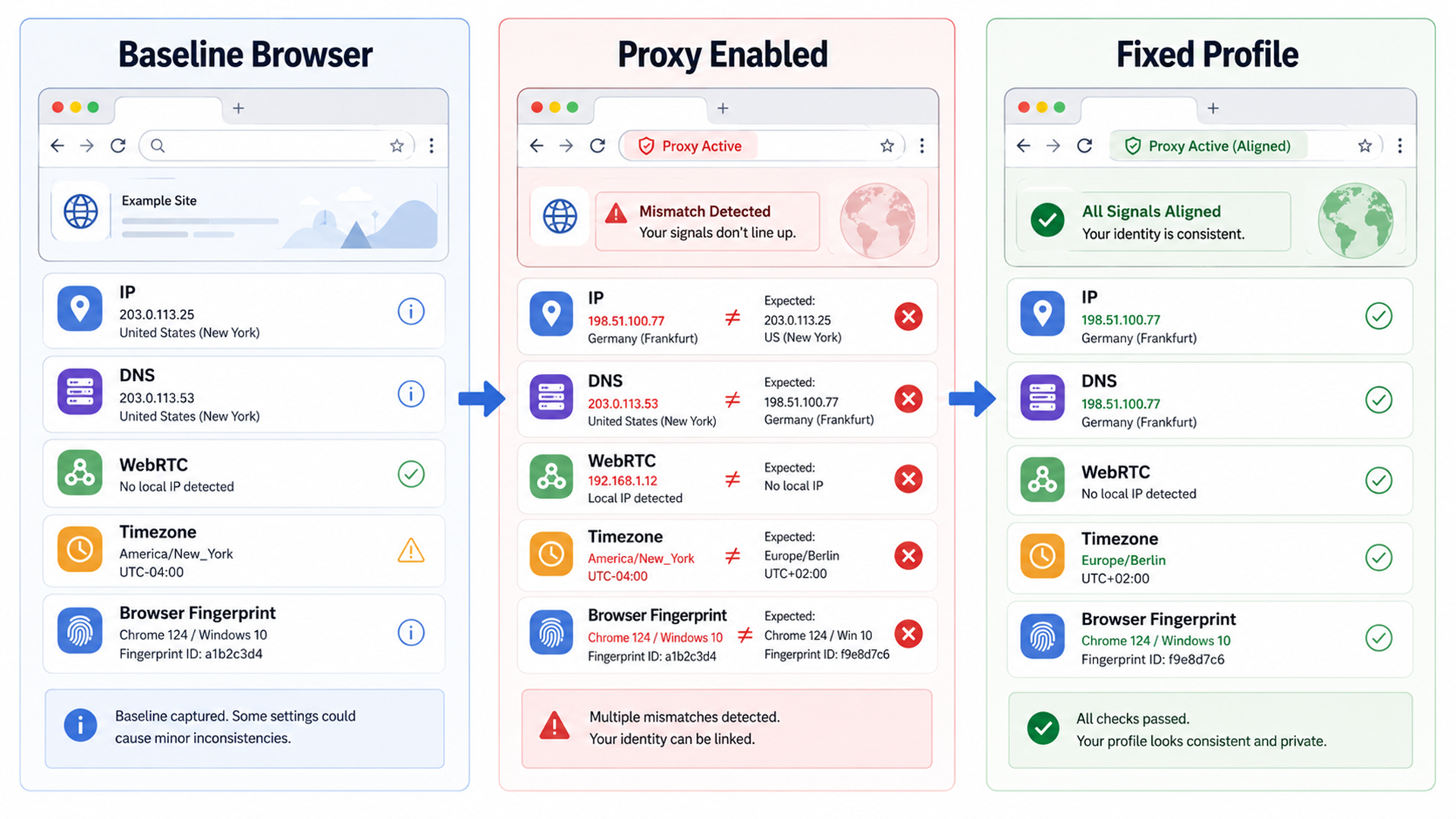
The best result is not “zero fingerprint.” Every browser has a fingerprint. The better goal is a fingerprint that is plausible, stable for the intended identity, and free of obvious leaks. If a test tool says your browser is unique, that does not automatically mean failure. If it says your IP, DNS, WebRTC, timezone, and browser environment contradict each other, that is a configuration problem.
A Practical Leak-Test Checklist
Use this checklist whenever you set up a new proxy, VPN, browser profile, or automation environment. Run it before logging into sensitive accounts, launching a workflow, or assuming a proxy is protecting your identity.
Network checks
- Visible IP shows the proxy or VPN location.
- IPv6 is either properly proxied or disabled if unsupported.
- DNS resolvers match the expected provider or route.
- WebRTC does not reveal an unexpected public or local IP.
- No browser extension is bypassing the proxy.
Browser identity checks
- Timezone matches the proxy region.
- Language and locale match the expected user profile.
- User agent matches the actual browser and OS.
- Screen size looks realistic for the declared device type.
- Canvas, WebGL, and font signals do not contradict the claimed environment.
- TLS and HTTP/2 fingerprints do not scream “headless automation.”
Storage and session checks
- Cookies are separated by profile or container.
- Local storage and IndexedDB are cleared for fresh identities.
- Old account logins are not reused across unrelated proxy sessions.
- Automation profiles are not cloned carelessly across many IPs.
- Retests are performed after browser updates or proxy changes.
The checklist works best when you keep records. Note the proxy provider, IP region, browser version, profile name, test date, and tool results. If something breaks later, that log helps you identify whether the culprit was the proxy, browser update, DNS resolver, WebRTC setting, extension, or automation script.
Where to Go From Here
A browser fingerprinting test is not a one-time ritual. It is a maintenance habit. Proxies change, browsers update, privacy defenses evolve, and websites adopt new detection methods. A setup that looked coherent last month may look messy after an extension update or after switching from a datacenter proxy to a residential proxy.
The practical path is simple: test before use, fix obvious mismatches, avoid over-randomization, separate browser profiles by purpose, and keep your network layer aligned with your browser identity. Start with IP, DNS, WebRTC, timezone, and language. Then move into deeper signals like canvas, WebGL, fonts, TLS, and storage. The more sensitive the workflow, the more disciplined the testing should be.
Ready to clean up your setup? Run one baseline browser fingerprinting test today, then test again with your proxy enabled. If the results conflict, fix the leak before trusting the session. For stronger workflows, compare proxy providers, evaluate whether a VPN belongs in your stack, and try Instanciar when you need separate, realistic browser fingerprints for different tasks.
References
- Electronic Frontier Foundation. “Cover Your Tracks.”
- CreepJS. “Browser Fingerprinting Platform.”
- BrowserLeaks. “Check your browser for privacy leaks.”
- BrowserLeaks. “WebRTC Leak Test.”
- BrowserLeaks. “DNS Leak Test.”
- WebRTC / Google Groups. “Private IP addresses exposed by WebRTC changing...”