Proxifier Rules Examples: Route Chrome, Discord, Python, or One App Through a Proxy
Proxifier rules examples are easiest to understand when you start with the goal: route one app through a proxy, and leave everything else on your normal internet connection.
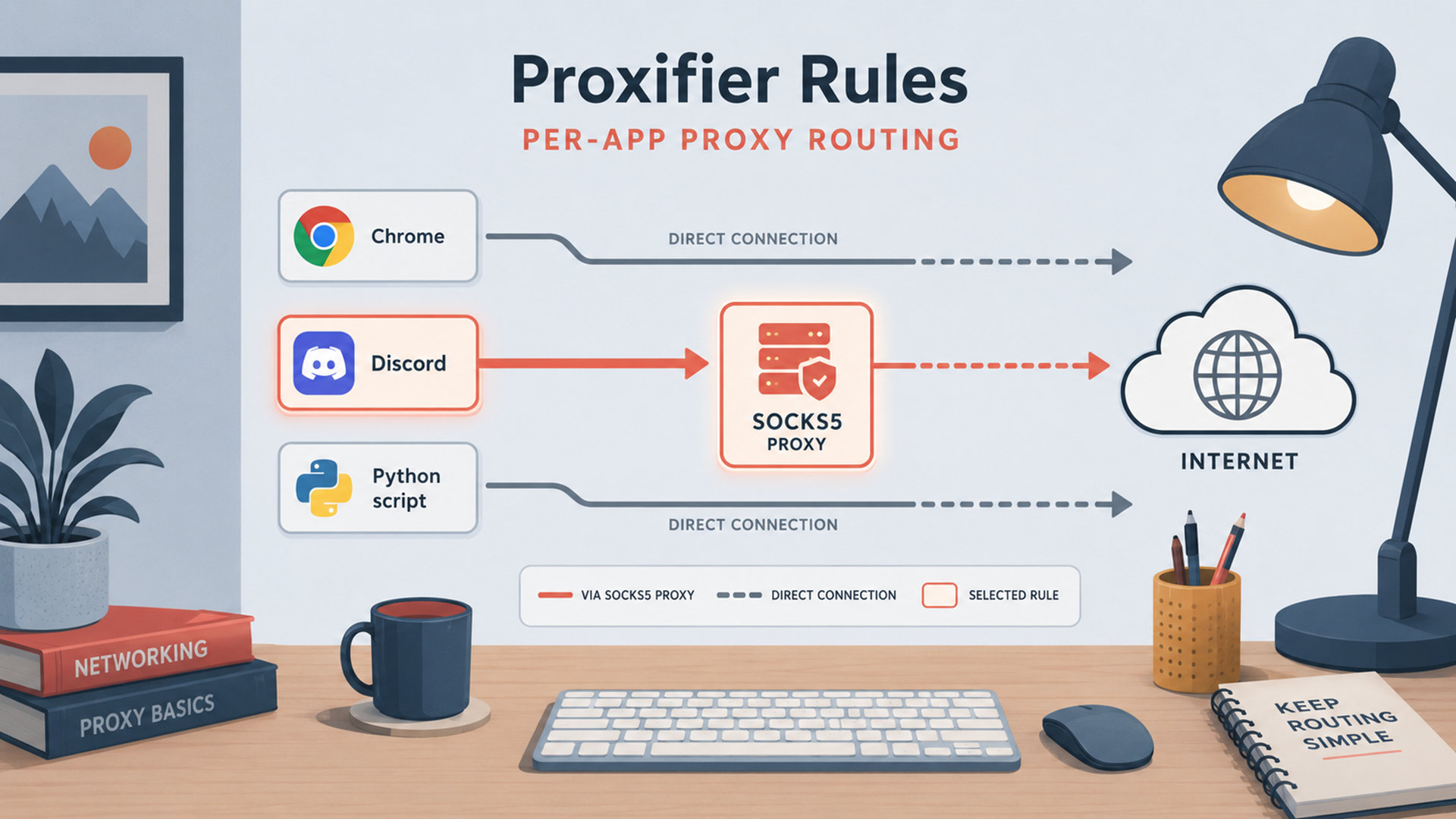
The basic setup is simple. Add your proxy server in Proxifier, keep the Default rule set to Direct, keep Localhost direct unless you have a specific reason to change it, then add one app-specific rule above Default. Proxifier’s official rules documentation says rules can match application names or paths, target hosts or IP addresses, and ports, and each rule can process traffic through a proxy, chain, direct connection, or block action.
This guide uses placeholder proxy details so you can adapt it to any provider:
Proxy label: SOCKS5_PROXY_PLACEHOLDER
Address: proxy.example.com
Port: 1080
Protocol: SOCKS5
Username: YOUR_USERNAME
Password: YOUR_PASSWORD
Default rule: Direct
Localhost rule: Direct
Use this only for traffic you are allowed to route through a proxy. Proxifier is a routing tool, not permission to bypass an app, employer, school, network, website, or platform rule.
Quick answer: the rule pattern that routes one app only
To route only one app through a proxy in Proxifier:
- Open Profile → Proxy Servers.
- Add your proxy server, usually SOCKS5 if your provider supports it.
- Open Profile → Proxification Rules.
- Keep Localhost enabled and direct.
- Set Default to Direct.
- Add a new rule above Default.
- Put the app executable in Applications.
- Leave Target hosts and Target ports blank unless you want a narrower rule.
- Set Action to your proxy.
- Test the app and watch Proxifier’s connection log.
The important part is step 5. If the Default rule uses your proxy, Proxifier will route everything that does not match another rule. Proxifier’s documentation also notes that the Default rule catches unmatched connections, while rule order matters because Proxifier scans rules from top to bottom.
Before you create the rules
Use a known-good proxy first. If you still need one, start with Jivaro’s Best Affordable Proxy Providers guide, then compare individual provider pages such as Webshare, IPRoyal, Proxy-Seller, or Proxy-Cheap.
For a broader first-time setup walkthrough, read Jivaro’s Beginner’s Guide to Setting Up Proxifier. That older guide covers the basic Proxifier flow, while this article focuses narrowly on rule examples for per-app routing.
- Disable old app-level proxy settings first. If an app already has its own proxy configured, the connection may be processed twice.
- Prefer SOCKS5 for these examples. Proxifier supports SOCKS5 with username/password authentication.
- Use HTTPS or HTTP proxy modes only when you understand the limits. Ordinary HTTP proxy behavior is narrower than a general SOCKS5-style app route.
- Use full executable paths when names are ambiguous. Proxifier allows executable names with or without paths, supports semicolon-separated entries, and supports wildcards.
- Do not overuse DNS-through-proxy. It can help when local DNS fails or leaks matter, but it has limitations and can break IP-based rules.
Proxifier rules examples you can copy
Use these as rule sheets, not as universal defaults. In Proxifier, blank Target hosts and blank Target ports mean “Any,” so an application-only rule will match all network connections from that executable.
| Use case | Rule name | Applications field | Target hosts | Target ports | Action |
|---|---|---|---|---|---|
| Route Chrome only | Chrome via SOCKS5 | "C:\Program Files\Google\Chrome\Application\chrome.exe";"C:\Program Files (x86)\Google\Chrome\Application\chrome.exe" |
Any | Any | SOCKS5_PROXY_PLACEHOLDER |
| Route Discord only | Discord via SOCKS5 | Discord.exe or "C:\Users\<you>\AppData\Local\Discord\app-*\Discord.exe" |
Any | Any | SOCKS5_PROXY_PLACEHOLDER |
| Route Python scripts | Python via SOCKS5 | python.exe;pythonw.exe or "C:\Path\To\Project\.venv\Scripts\python.exe" |
Any | Any | SOCKS5_PROXY_PLACEHOLDER |
| Route one desktop app | One app via SOCKS5 | "C:\Path\To\App.exe" |
Any | Any | SOCKS5_PROXY_PLACEHOLDER |
| Route selected CLI tools | CLI tools via SOCKS5 | curl.exe;wget.exe;git.exe;node.exe;powershell.exe;pwsh.exe |
Any | Any | SOCKS5_PROXY_PLACEHOLDER |
| Route one dedicated browser profile | Dedicated browser via SOCKS5 | "C:\Browsers\ProxyChrome\chrome.exe" or another dedicated browser executable path |
Any | Any | SOCKS5_PROXY_PLACEHOLDER |
Rule order should look like this:
1. Localhost          → Direct
2. Chrome/Discord/Python/One App → SOCKS5_PROXY_PLACEHOLDER
3. Default           → Direct
That is the core of SOCKS5 per-app routing in Proxifier.
Example 1: route only Chrome through a proxy
Use this when you want Chrome through the proxy but want Discord, Python, Steam, system updates, and other apps to stay direct.
Name: Chrome via SOCKS5
Applications:
"C:\Program Files\Google\Chrome\Application\chrome.exe";"C:\Program Files (x86)\Google\Chrome\Application\chrome.exe"

Target hosts: Any
Target ports: Any
Action: SOCKS5_PROXY_PLACEHOLDER
Then set:
Localhost: Direct
Default: Direct
Why use the full path? Because chrome.exe is a common process name. A full path makes the rule harder to confuse with another Chromium-based browser, a test copy, or a portable browser.
After saving the rule, close all Chrome windows and restart Chrome. Then open a browser IP-check page and compare Chrome against another browser that is not in the rule. Chrome should show the proxy route; the other browser should show your normal connection.
A Chrome-only Proxifier rule does not clean cookies, browser fingerprinting signals, WebRTC behavior, timezone, profile history, or account history. If you are doing browser-session work, Jivaro’s browser fingerprinting test guide is a useful follow-up.
Example 2: route one Chrome profile through a proxy
This is where many forum answers get sloppy.
A normal Proxifier rule can match the application executable, path, target host, port, wildcard, or even a temporary process ID. It does not reliably match “Chrome Profile 2” just because you launched Chrome with a different profile folder. The docs describe application matching by executable name/path and process ID, not by Chrome profile name or command-line profile argument.
So the reliable pattern is:
Use a dedicated browser executable path + a dedicated browser profile folder.For example, create a separate browser copy or portable Chromium-style folder:
C:\Browsers\ProxyChrome\chrome.exeCreate a shortcut that launches a separate user-data folder:
"C:\Browsers\ProxyChrome\chrome.exe" --user-data-dir="C:\Browsers\ProxyChrome\UserData"Then create this Proxifier rule:
Name: Dedicated Chrome profile via SOCKS5
Applications:
"C:\Browsers\ProxyChrome\chrome.exe"

Target hosts: Any
Target ports: Any
Action: SOCKS5_PROXY_PLACEHOLDER
Keep your normal Chrome install direct by not including its path in the rule.
This is also where Instanciar may be the cleaner tool. Instanciar is built for isolated Chromium-based browser instances with proxy-supported launches, while Proxifier is better for desktop apps and utilities that do not expose their own proxy settings.
Example 3: route only Discord through a proxy
Discord can be trickier than a basic browser rule because app updates, startup helpers, and Electron-style app folders can change paths.
Start with the narrow rule:
Name: Discord via SOCKS5
Applications:
Discord.exe

Target hosts: Any
Target ports: Any
Action: SOCKS5_PROXY_PLACEHOLDER
If Discord does not connect, watch Proxifier’s log while opening Discord. If you see traffic from an updater or a different path, use a full-path wildcard rather than a broad Update.exe rule:
Name: Discord via SOCKS5
Applications:
"C:\Users\<you>\AppData\Local\Discord\app-*\Discord.exe";"C:\Users\<you>\AppData\Local\Discord\Update.exe"

Target hosts: Any
Target ports: Any
Action: SOCKS5_PROXY_PLACEHOLDER
Avoid adding a generic Update.exe rule unless you know exactly what else on the computer uses that executable name. Full paths reduce accidental routing.
If voice or media behavior is inconsistent, do not assume the rule failed. Some app features may use different networking behavior than ordinary TCP web requests. Test the specific feature you care about before trusting the setup.
Example 4: route Python scripts through a proxy
For Python, route the interpreter that opens the network connection, not the .py file.
Name: Python via SOCKS5
Applications:
python.exe;pythonw.exe

Target hosts: Any
Target ports: Any
Action: SOCKS5_PROXY_PLACEHOLDER
For a project virtual environment, use the full path instead:
Name: Project Python via SOCKS5
Applications:
"C:\Users\<you>\Projects\my-project\.venv\Scripts\python.exe"

Target hosts: Any
Target ports: Any
Action: SOCKS5_PROXY_PLACEHOLDER
This matters because Python workflows can run through several executables:
python.exe
pythonw.exe
py.exe
pip.exe
pytest.exe
uv.exe
poetry.exe
node.exe
If your script still connects directly, open Proxifier’s log and check which process actually made the connection. Then add that executable or replace the rule with the full interpreter path.
For command-line Python scraping, automation, or testing, also check whether the code itself sets a proxy through requests, aiohttp, Playwright, Selenium, or environment variables. If both the script and Proxifier apply a proxy, you may create a confusing double-proxy setup.
Example 5: route command-line tools without routing the whole terminal
A common mistake is routing cmd.exe or WindowsTerminal.exe and assuming every command inside it will use the proxy. The terminal is often just the container. The child process usually opens the network connection.
Name: CLI tools via SOCKS5
Applications:
curl.exe;wget.exe;git.exe;node.exe;powershell.exe;pwsh.exe

Target hosts: Any
Target ports: Any
Action: SOCKS5_PROXY_PLACEHOLDER
Use only the tools you need. For example:
Applications:
git.exe
That routes Git without routing every PowerShell command.
PowerShell is different because commands such as Invoke-WebRequest may originate from powershell.exe or pwsh.exe. In that case, routing PowerShell itself can make sense. For curl, git, node, python, or wget, route the tool executable directly.
Example 6: route one app and keep everything else untouched
This is the general template:
Name: One app via SOCKS5
Applications:
"C:\Path\To\App.exe"

Target hosts: Any
Target ports: Any
Action: SOCKS5_PROXY_PLACEHOLDER
Then verify:
Localhost: Direct
Default: Direct
Use this for apps that do not have native proxy settings: desktop API clients, old utilities, launchers, research tools, local test clients, or automation software. If the app already supports proxy settings cleanly, decide whether Proxifier is actually needed. Native proxy settings may be simpler for one app; Proxifier is useful when the app does not give you that control.
Downloadable Proxifier rule templates
Proxifier profiles can be imported and exported through the File menu, and Proxifier’s profile files use a human-readable XML format. Profiles can contain proxy passwords, so remove real credentials before publishing a downloadable template.
Before publishing downloadable templates, remove real credentials. A safe public template should use placeholders like:
proxy.example.com
1080
SOCKS5
YOUR_USERNAME
YOUR_PASSWORD
If you export a profile from your own machine, inspect the file before uploading it.
Screenshot checklist for publishing
To make this tutorial more useful than a forum answer, add real screenshots when the templates are ready:
- Proxy Servers window with placeholder SOCKS5 details.
- Proxification Rules list showing Localhost, one app rule, and Default.
- Add/Edit Rule window with the Chrome rule.
- Add/Edit Rule window with the Python virtual environment rule.
- Proxifier log showing only the selected app using the proxy.
- Browser IP-check comparison showing Chrome proxied and another browser direct.
Do not use screenshots with real proxy credentials, IPs, usernames, account dashboards, or private project paths.
Troubleshooting common Proxifier rule mistakes
Everything is going through the proxy
Your Default rule is probably set to the proxy. Change Default to Direct, then keep only the app-specific rule set to the proxy.
The app is still direct
The Applications field probably does not match the process that actually opens the connection. Use Proxifier’s log, Task Manager, or the app install folder to find the real executable. Then use the full path.
Chrome routing affects every Chrome profile
That is expected if every profile uses the same chrome.exe path. Use a dedicated browser executable path, a portable browser copy, or a browser instance manager such as Instanciar for cleaner browser-profile separation.
Discord opens but updates fail
Add the Discord updater path only if the log shows updater traffic. Prefer a full path such as:
"C:\Users\<you>\AppData\Local\Discord\Update.exe"Avoid broad updater rules that might catch unrelated apps.
Python still bypasses the proxy
You may be routing the wrong interpreter. Virtual environments often use their own python.exe. Select the exact interpreter under:
Project\.venv\Scripts\python.exeAlso check whether your script or library sets its own proxy.
The app breaks when using an HTTP proxy
Use SOCKS5 if your provider supports it. If you must use HTTP or HTTPS proxy settings, read Proxifier’s HTTP proxy notes first because ordinary HTTP proxy behavior is narrower than a general SOCKS5-style app route.
DNS behavior does not match expectations
If you enable DNS through proxy, remember that proxy-based DNS can use placeholder IP addresses and that IP-address-based rules may not work in that mode. Use hostname rules where appropriate, and test carefully.
Windows and macOS notes
These examples are Windows-first because the app paths and executable names are Windows-style.
As of the current Proxifier download page, Proxifier lists Windows Standard/Portable v4.14 and Proxifier for Mac v3.15, with a 31-day trial listed for both desktop platforms. The same general rule logic applies on macOS, but paths, app bundles, and UI details differ.
For macOS, do not paste Windows paths. Use the Mac version’s app selection flow and verify the exact application entry inside Proxifier.
FAQ
Can Proxifier route only one app through a proxy?
Yes. Set Default to Direct, then create an app-specific rule with the selected executable in the Applications field and your proxy as the Action. Leave Target hosts and Target ports blank if you want all connections from that app to use the proxy.
Can I route only Chrome through Proxifier?
Yes. Add chrome.exe or the full Chrome executable path to a Proxification Rule, set the rule Action to your proxy, and keep Default set to Direct.
Can I route only one Chrome profile through Proxifier?
Not reliably by Chrome profile name alone. Proxifier can match executable names, paths, targets, ports, wildcards, and process IDs. For a stable “one profile only” workflow, use a dedicated browser executable path plus a dedicated user-data folder, or use a browser instance tool such as Instanciar.
Should I use SOCKS5 or HTTP with Proxifier?
Use SOCKS5 for these examples when your proxy provider supports it. SOCKS5 is the cleaner default for per-app routing and supports username/password authentication in Proxifier. HTTP proxy setups can work for web traffic, but they have more protocol limits.
Do Proxifier rules hide browser fingerprints?
No. A Proxifier rule changes network routing for matching connections. It does not reset cookies, browser storage, account history, timezone, language, WebRTC behavior, or fingerprinting signals. Test those separately.
Where do I put downloadable Proxifier templates?
Export a clean .ppx profile from Proxifier, remove real credentials, replace the proxy details with placeholders, upload the file to your site, then replace the placeholder download URLs in this article.