How to set up Proxifier depends on what you want to route. The beginner setup is simple: install Proxifier, add a SOCKS5 or HTTPS proxy, test it, then create a rule that sends one app through that proxy instead of routing your whole system blindly.
That last part matters. Proxifier can route apps that do not have their own proxy settings, but it is easy to create problems if you double-proxy an app, choose HTTP when you need SOCKS5, route system services by accident, or forget to test DNS, WebRTC, and visible IP behavior afterward.
This guide starts from zero on Windows, then moves into advanced Proxifier rules, DNS/name resolution, proxy chains, app-specific routing, leak testing with NetPeek, proxy selection with IPRoyal, and browser-session separation with Instanciar.
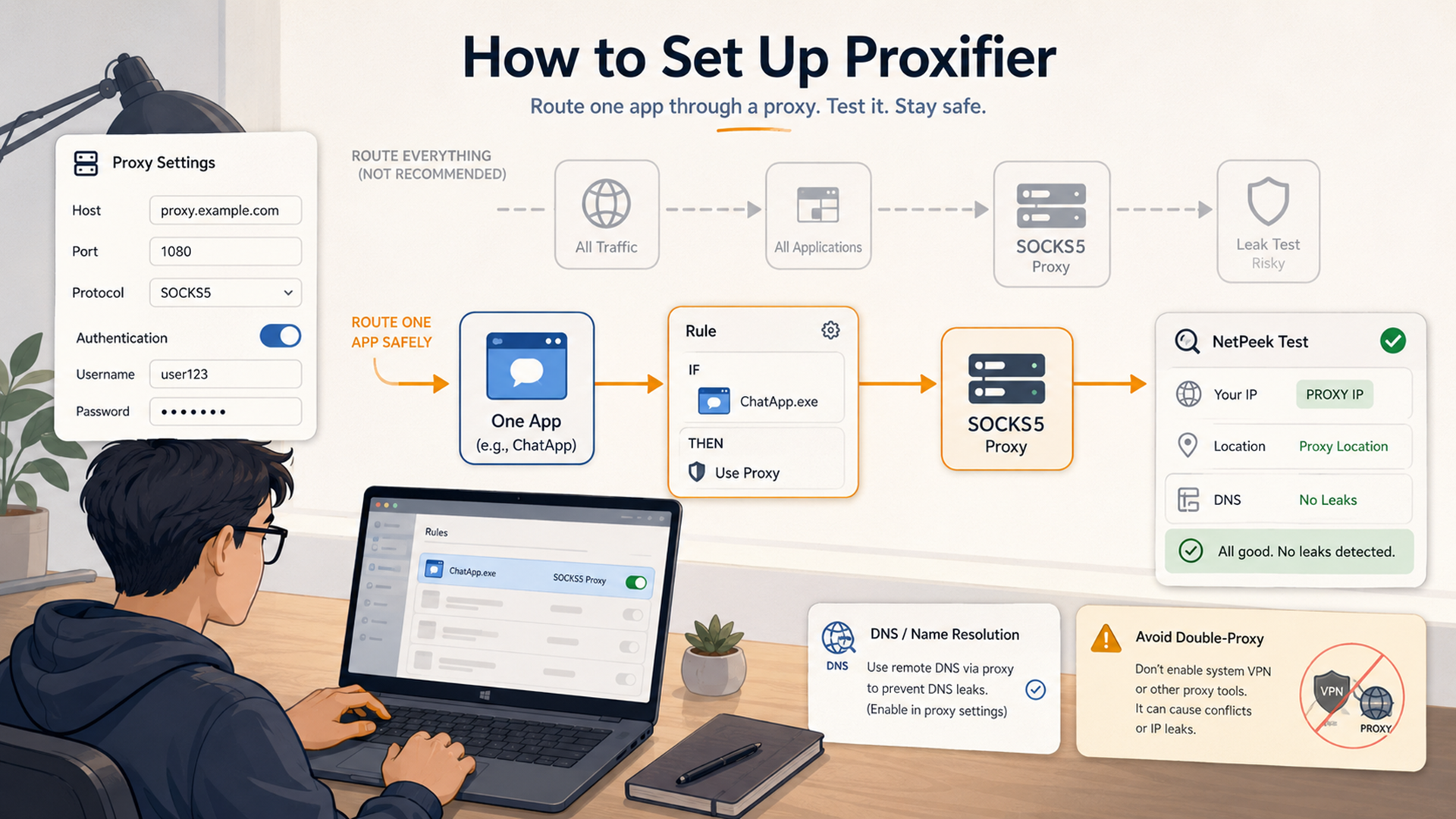
Quick answer: the safest Proxifier setup for beginners
The safest beginner setup is not “route everything.” It is “route one app, test it, then expand only if needed.”
| Step | What to do | Why it matters |
|---|---|---|
| 1 | Install Proxifier for Windows Standard Edition, or use Portable only if its limitations fit. | Standard Edition is better for full Windows routing and services; Portable is lighter but limited. |
| 2 | Get a working proxy first: usually SOCKS5 or HTTPS. Use IPRoyal or another provider if you need a paid proxy. | Proxifier is proxy-routing software; it does not provide proxy server accounts. |
| 3 | Add the proxy in Profile → Proxy Servers → Add. | Proxifier needs the proxy address, port, protocol, and authentication before it can route anything. |
| 4 | Run Proxy Checker before using the proxy. | This catches bad credentials, dead proxies, wrong protocols, and latency problems early. |
| 5 | Create one Proxification Rule for one app, such as a browser, downloader, terminal tool, or scraper. | Routing one app is easier to debug than routing the whole system. |
| 6 | Run a leak test with NetPeek. | You need to verify visible IP, DNS, WebRTC, and browser signals after routing. |
| 7 | Only then add more rules, DNS-through-proxy, chains, app groups, or service routing. | Advanced features are powerful but harder to troubleshoot. |
Beginner rule: do not configure the app itself to use a proxy and also route it through Proxifier. Proxifier’s own quick-start guide warns that this can process the connection through the proxy twice. Set the target app to connect directly, then let Proxifier handle the route.
What Proxifier does
Proxifier is a proxy client for applications that do not support proxies natively. The official Proxifier site says it lets network applications operate through SOCKS or HTTPS proxies and proxy chains. In plain English: if an app does not have proxy settings, Proxifier can often route that app’s TCP connections through a proxy anyway.
That makes it different from a browser proxy extension. A browser extension only affects that browser. Proxifier can work at the application-routing level, so it can route tools like desktop apps, terminals, game launchers, database clients, custom scripts, and browsers—depending on how you configure it.
| Tool | What it routes | Best for | Common mistake |
|---|---|---|---|
| VPN | Usually most device traffic. | Public Wi-Fi, device-wide privacy, simple travel setup. | Using a VPN when you only need one app routed. |
| Browser proxy extension | One browser. | Quick browser-only proxy switching. | Assuming it routes desktop apps outside the browser. |
| Built-in app proxy settings | Only that app. | Apps that already support HTTP, HTTPS, or SOCKS settings. | Leaving built-in proxy settings on while also using Proxifier. |
| Proxifier | Selected apps, targets, ports, or broader TCP connections based on rules. | Routing apps that do not support proxies, app-specific proxy rules, DNS-through-proxy, chains, and troubleshooting. | Routing everything immediately and then not knowing what broke. |
If you are still deciding between proxy routing and a VPN, read Jivaro’s proxy vs VPN guide before setting up Proxifier. A VPN is often better for device-wide privacy. Proxifier is better when you want controlled routing for specific apps.
Before you start: what you need
Proxifier does not give you proxy server accounts. You need your own proxy details first.
For most users, the proxy details look like this:
Proxy host: 123.45.67.89 or proxy.example.com
Port: 1080, 8080, 3128, or provider-specific port
Protocol: SOCKS5, SOCKS4, HTTPS, or HTTP
Username: your proxy username
Password: your proxy password
Use SOCKS5 or HTTPS for most Proxifier workflows. Proxifier’s Windows documentation lists SOCKS4, SOCKS4A, SOCKS5, HTTPS, and HTTP support, but HTTP is limited to HTTP connections only. Many users confuse HTTP and HTTPS proxies, so do not assume an HTTP proxy can handle arbitrary app traffic.
| Proxy protocol | Use it when | Be careful because… |
|---|---|---|
| SOCKS5 | You need broad app compatibility, username/password auth, and non-browser routing. | SOCKS5 is a proxy protocol, not a full privacy guarantee or automatic encryption layer. |
| SOCKS4 / SOCKS4A | You have an older proxy or a very specific compatibility need. | SOCKS4 is legacy and does not support normal username/password authentication like SOCKS5. |
| HTTPS | Your proxy supports CONNECT/SSL tunneling for arbitrary ports. | Not every HTTP-style proxy supports HTTPS tunneling properly. |
| HTTP | You only need HTTP traffic routed and understand the limitation. | HTTP proxies in Proxifier are only for HTTP connections unless separately configured as HTTPS/CONNECT. |
For a proxy source, start with a provider that supports the protocol your app needs. IPRoyal is a practical Jivaro-linked starting point for residential, ISP, datacenter, and mobile proxies. If you are still comparing providers, use Jivaro’s affordable proxy provider guide.
How to set up Proxifier on Windows
This beginner flow assumes Windows first. Proxifier also has a Mac version, but Windows is where most app-routing searches happen and where Standard vs Portable matters most.
- Download Proxifier from the official Proxifier download page.
- Choose Standard Edition for normal Windows use. Use Portable only if you understand its limitations.
- Install the Standard Edition as administrator.
- Launch Proxifier.
- Confirm the Proxifier icon appears in the system tray.
- Open the main window from the tray icon if needed.
- Do not add rules yet. Add and test the proxy first.
Proxifier’s current public download page lists Windows Standard Edition v4.14, a 31-day free trial, and support for Windows 7, 8, 10, 11 plus Windows Server versions. The purchase page lists a one-time license price of $39.95 for Windows Standard, Windows Portable, or Mac, with a 30-day money-back guarantee.
| Edition | Use it when | Limitations to know |
|---|---|---|
| Windows Standard | You want the normal full setup for Windows app routing. | Requires installation and admin rights because it uses a Windows driver. |
| Windows Portable | You need a lightweight, no-install folder-based setup. | Does not support services or non-UI applications the same way Standard does. |
| Mac | You use macOS and need Proxifier’s Mac workflow. | Menus and system behavior differ from Windows. Do not copy Windows driver instructions directly. |
Add a proxy server in Proxifier
Once Proxifier is open, add the proxy server before touching rules.
- Open Profile in the Proxifier menu.
- Click Proxy Servers.
- Click Add.
- Enter the proxy address or hostname.
- Enter the port.
- Choose the protocol: usually SOCKS5 or HTTPS.
- Add username and password if your proxy provider requires authentication.
- Click Check or use Proxy Checker to test it.
- Click OK after the proxy works.
When Proxifier asks whether to use the proxy by default, do not automatically click Yes unless you intentionally want all new TCP connections routed through that proxy. For beginners, it is usually safer to say No, then create one app-specific rule manually.
Recommended beginner choice: add the proxy, test it, then create a rule for one app. Avoid making the proxy the default for everything until you know your DNS, WebRTC, and app behavior are clean.
Test the proxy with Proxy Checker
Do not skip this. Proxifier includes a Proxy Checker tool that can test SOCKS4, SOCKS5, HTTPS, and HTTP proxies, report problems, and measure response time. It is built into the Proxy Settings workflow and can also be opened separately.
Use Proxy Checker to catch these problems before routing apps:
| Proxy Checker result | Likely cause | Fix |
|---|---|---|
| Authentication failed | Wrong username/password, expired proxy, or wrong authentication mode. | Copy credentials from your provider again and check IP allowlist settings. |
| Connection timed out | Proxy is down, blocked by firewall, wrong host, wrong port, or network issue. | Test another proxy, confirm port, and check local firewall or corporate network restrictions. |
| Protocol mismatch | You selected HTTP but the provider gave SOCKS5, or HTTPS but the proxy only supports HTTP. | Use the exact protocol listed by the proxy provider. |
| Very high latency | Proxy is far away, overloaded, or routed through a slow network path. | Choose a closer proxy or a higher-quality proxy type. |
| Works in browser but fails in Proxifier | The proxy may be an HTTP proxy without arbitrary HTTPS/CONNECT support. | Use SOCKS5 or a proper HTTPS/CONNECT proxy for general app routing. |
After Proxy Checker passes, open NetPeek in the app or browser you plan to route and confirm the visible IP and browser signals match what you expect.
Route one app through Proxifier
The cleanest first rule is one app through one proxy. For example, route only Chrome, Firefox, a terminal tool, a scraper, a downloader, or a test application.
- Open Profile → Proxification Rules.
- Click Add.
- Name the rule something clear, such as Chrome via SOCKS5.
- Under Applications, browse to the executable file or type its name.
- Leave Target Hosts as Any for your first test.
- Leave Target Ports as Any for your first test.
- Set Action to your proxy server.
- Move the rule above the Default rule.
- Save and launch the app.
- Use NetPeek or another IP check to confirm routing.
Example app entries:
chrome.exe
firefox.exe
python.exe
node.exe
curl.exe
myapp.exe
Use exact paths if the same executable name appears in more than one location. For apps with spaces in the path, Proxifier’s documentation says to use quotes around names containing spaces.
Proxification Rules: the advanced feature that matters most
Proxification Rules are where Proxifier becomes powerful. The official documentation says rules can process connections directly, through a proxy or chain, or block them. Rules can match application names, target hostnames, IP addresses, and port numbers. Rule order matters because Proxifier scans rules from top to bottom.
That means you can build setups like:
- Route only Chrome through a residential proxy.
- Route only a scraper script through SOCKS5.
- Send one app directly while the rest uses a proxy.
- Block a tool from connecting to a specific host.
- Route port 443 through one proxy and leave local network traffic direct.
- Keep localhost connections direct so apps do not break.
| Rule field | What it controls | Example |
|---|---|---|
| Applications | Which program the rule applies to. | chrome.exe, python.exe, "C:\Program Files\App\app.exe" |
| Target hosts | Which domains or IPs the rule applies to. | example.com, *.example.com, 192.168.0.0/24 |
| Target ports | Which ports the rule applies to. | 80, 443, 8000-8999 |
| Action | What Proxifier does when the rule matches. | Proxy, Chain, Direct, or Block. |
| Rule order | Which matching rule wins first. | Specific app rules should usually sit above broad default rules. |
Keep the Localhost rule unless you know exactly why you are changing it. Proxifier’s documentation notes that some applications depend on loopback connections, and tunneling localhost through a proxy can break local app behavior.
DNS and name resolution through proxy
DNS is where many Proxifier setups become confusing. Proxifier can resolve hostnames through a proxy server. That is useful when local DNS does not work, when a restricted network blocks DNS, or when the workflow requires remote name resolution.
But DNS-through-proxy has tradeoffs. Proxifier’s documentation explains that when hostnames are resolved through a proxy, Proxifier may assign placeholder local IPs such as 127.8.*.*, and rules based on real IP addresses will not work in that mode.
| DNS mode | Use it when | Be careful because… |
|---|---|---|
| Local DNS | Your local DNS works and you do not need remote hostname resolution. | DNS requests may not follow the same path as the proxy route. |
| Detect automatically | You want Proxifier to monitor DNS availability and switch when needed. | Automatic behavior can confuse troubleshooting if you do not read the log. |
| Resolve hostnames through proxy | Local DNS is blocked, broken, or leaks in a way that matters for the workflow. | Proxifier may use placeholder IPs, and IP-based rules may not behave as expected. |
| Resolve only selected names through proxy | Only some domains need proxy-side resolution. | Wildcard rules need to be tested carefully. |
After changing DNS settings, retest with NetPeek. Check visible IP, DNS clues, WebRTC, timezone, and browser signals. Do not assume DNS is fixed just because the app connects.
Proxy chains: useful, but not a beginner default
Proxifier supports proxy chains. In a chain, traffic passes from one proxy server to another in order. This can be useful in restricted corporate networks, advanced routing, redundancy, or specialized testing workflows.
Chains add complexity. Proxifier’s documentation notes that a chain can contain different proxy types, but if one proxy in the chain is not working, the chain will fail. It also notes that total latency is the sum of the latency across the proxies in the chain.
| Chain type | Use it when | Risk |
|---|---|---|
| Simple Chain | You need traffic to pass through multiple proxies in order. | Slower and easier to break than one proxy. |
| Redundancy | You need fallback behavior when a proxy fails. | Requires careful testing so fallback does not route somewhere unintended. |
| Load Balancing | You want traffic distributed across proxies. | Can be bad for sessions that require one stable IP. |
For most beginners, do not start with chains. Set up one proxy, route one app, test it, then add complexity only when you can explain why you need it.
Windows first, with macOS notes
Windows setup is the focus here because Proxifier’s Windows version has Standard and Portable editions, Windows Service behavior, and driver-related details that matter for routing desktop apps.
For macOS, the concept is similar—add a proxy, set rules, test routing—but the menus, supported OS behavior, and system integration are not identical. Proxifier’s Mac documentation says the Mac version can route applications through SOCKS or HTTPS proxies or chains, use flexible Proxification Rules, resolve DNS names through proxy, and view network activity.
| Question | Windows note | Mac note |
|---|---|---|
| Should I use this guide exactly? | Yes, the menu names and setup flow are Windows-first. | Use the concepts, but check the Mac docs for exact menus. |
| Do I need admin rights? | Standard Edition installation and driver operations require admin rights. | macOS may require system permissions depending on version and setup. |
| Can I route services? | Windows Standard can process services and other users if advanced settings are enabled. | Do not assume Windows service instructions apply to macOS. |
| Does Portable work the same? | Portable avoids installation but has limitations, especially with services and non-UI apps. | Portable Edition is a Windows-specific discussion in the docs reviewed here. |
Test IP, DNS, WebRTC, and app routing after setup
A Proxifier setup is not finished when the app connects. It is finished when you can prove the app is using the route you intended and not leaking through a direct path.
Open NetPeek inside the browser or workflow you routed. Check:
- visible IP address
- proxy or VPN region
- DNS clues
- WebRTC behavior
- timezone and language mismatch
- browser fingerprint clues
If you are routing a non-browser app, also check Proxifier’s log view. Look for the application name, target host, target port, rule matched, and action used. If the app does not appear in the log, Proxifier may not be handling it, or the app may be using a different process than you expected.
| Test result | What it means | What to fix |
|---|---|---|
| IP did not change | The app may not be routed through Proxifier, or the rule did not match. | Check rule order, app executable, proxy action, and whether Proxifier is running. |
| App works but browser leak test fails | Network route changed but browser signals still mismatch. | Use a clean browser profile or Instanciar for separated browser sessions. |
| DNS points somewhere unexpected | Name resolution may be local, mixed, or routed differently than expected. | Review Proxifier Name Resolution and Secure DNS/browser settings. |
| WebRTC shows another route | The browser may expose candidates outside the proxy route. | Adjust browser WebRTC settings or use a profile designed for that workflow. |
| Only one app fails | The app may use a different process, local helper, service, or protocol. | Use Proxifier logs, add helper processes, or test Standard Edition service handling if appropriate. |
Advanced Proxifier workflows
Once your first app-specific rule works, Proxifier becomes a powerful routing lab. Add one advanced feature at a time.
| Workflow | Setup idea | What to test |
|---|---|---|
| Route only a scraper | Rule for python.exe, node.exe, or the compiled scraper app. |
Confirm the scraper process appears in Proxifier logs and exits through the proxy. |
| Route one browser profile | Create a rule for a dedicated browser executable or portable browser path. | Check NetPeek, cookies, timezone, DNS, and WebRTC inside that browser session. |
| Split traffic by domain | Use target-host rules like *.example.com through proxy and everything else direct. |
Confirm the right hosts match and that unrelated domains stay direct. |
| Split traffic by port | Route port 443 through one proxy and leave local or development ports direct. | Confirm port rules do not catch local tools unexpectedly. |
| Block unwanted destinations | Create a rule with Action set to Block for unwanted hosts or ports. | Confirm the block catches only what you intended. |
| Use separate regional proxies | Create rules for different browsers, tools, or targets using different proxies. | Confirm IP, DNS, and browser settings match each region test. |
| Route services | Use Windows Standard Edition’s advanced Services and Other Users settings. | Only do this if you understand the service and have admin approval. |
For browser workflows, Proxifier and Instanciar solve different parts of the problem. Proxifier routes traffic. Instanciar keeps browser instances separated so cookies, storage, and context do not mix. Use both only where the workflow is allowed and makes sense.
Troubleshooting Proxifier setup problems
When Proxifier breaks, the fix is usually visible in one of four places: Proxy Checker, Proxification Rules, Name Resolution, or the log window.
| Problem | Likely cause | Fix |
|---|---|---|
| Everything stops connecting | You routed all traffic through a dead proxy or bad default rule. | Set Default to Direct, test the proxy, then route one app at a time. |
| App still shows real IP | Rule did not match the actual executable or helper process. | Check Proxifier logs and add the correct process name or path. |
| Proxy works in browser but not in Proxifier | Wrong protocol, especially HTTP vs HTTPS/CONNECT confusion. | Use SOCKS5 or confirm the proxy supports HTTPS tunneling for arbitrary ports. |
| DNS requests leak or fail | Local DNS, browser Secure DNS, or Proxifier name resolution is misaligned. | Review Name Resolution and retest with NetPeek. |
| Local app features break | Loopback or localhost traffic is being routed through the proxy. | Keep the Localhost rule enabled unless you have a specific reason to tunnel it. |
| Proxy chain is slow | Latency stacks across every proxy in the chain. | Use one good proxy instead of a long chain unless the chain is required. |
| Service traffic is not routed | Portable Edition or default settings cannot handle the service workflow. | Use Standard Edition and enable Services and Other Users only if you understand the risk. |
| Windows driver error | Driver not installed, stopped, blocked, or old Windows compatibility issue. | Run as administrator, reinstall Standard Edition, or review official driver troubleshooting. |
For repeatable debugging, turn on more detailed logging under Proxifier’s Log output options, then change one setting at a time. Do not change proxy, DNS, rules, and browser profile all at once.
Use Proxifier responsibly
Proxifier is a routing tool. It is useful for app-specific proxy routing, corporate network access, testing, QA, troubleshooting, regional checks, and workflows where selected apps need a proxy. It should not be used for fraud, ban evasion, platform abuse, unauthorized scraping, bypassing rules, impersonation, credential abuse, or illegal activity.
The compliance rule is simple: if a platform, employer, client, school, or website prohibits proxy use for a workflow, Proxifier does not make it allowed. A clean technical setup is not permission.
If you are routing work tools, client dashboards, scraping scripts, or account-based apps, check the rules first. Then configure the proxy. Then test the session.
FAQ
Sources and useful links
- Proxifier official site
- Proxifier downloads
- Proxifier pricing and licensing
- Proxifier v4 for Windows documentation
- Proxifier Quick Start
- Proxy Server Settings
- Proxification Rules
- Name Resolution
- Proxy Chains
- Proxy Checker
- Proxifier Editions
- Proxifier for Mac documentation
The cleanest Proxifier setup is boring: one proxy, one rule, one app, one test. Once that works, add DNS-through-proxy, chains, app groups, and advanced routing only when the workflow actually needs them.